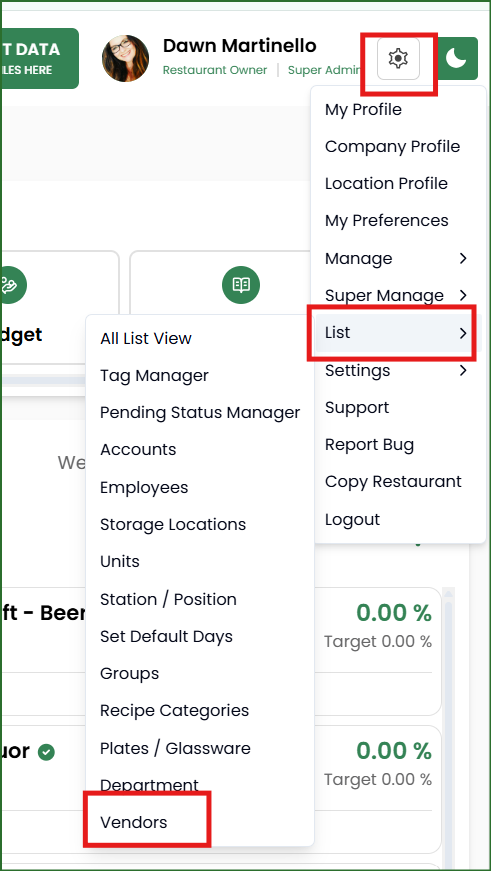
Access your list of vendors by clicking on the gear icon then LIST and choosing VENDORS.
You can bulk add vendors from an Excel spreadsheet or click the green + button to add a new vendor. The pencil icon will allow you to edit any vendor and the trash can icon will delete your vendor.
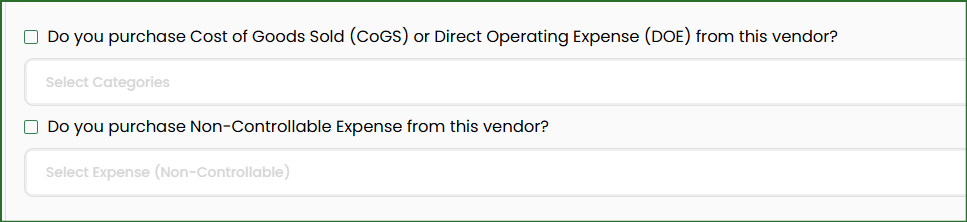
To save time when processing your documents, you can set default category or expense accounts for this vendor.
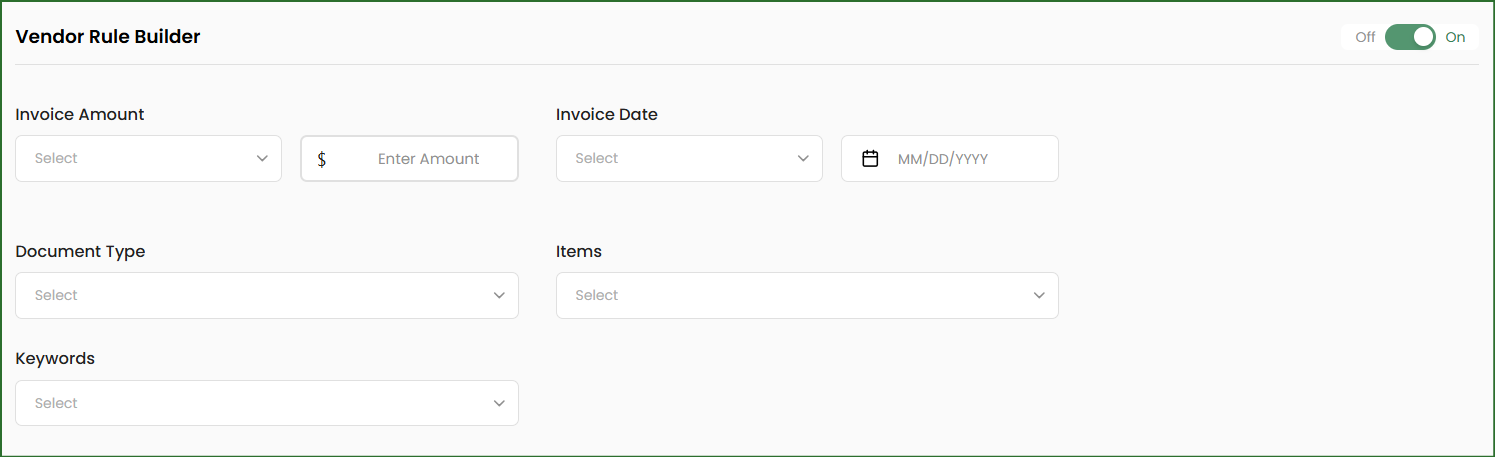
You can set auto hold rules by vendor as well based on the amount, invoice date, type of document, items or specific keywords.
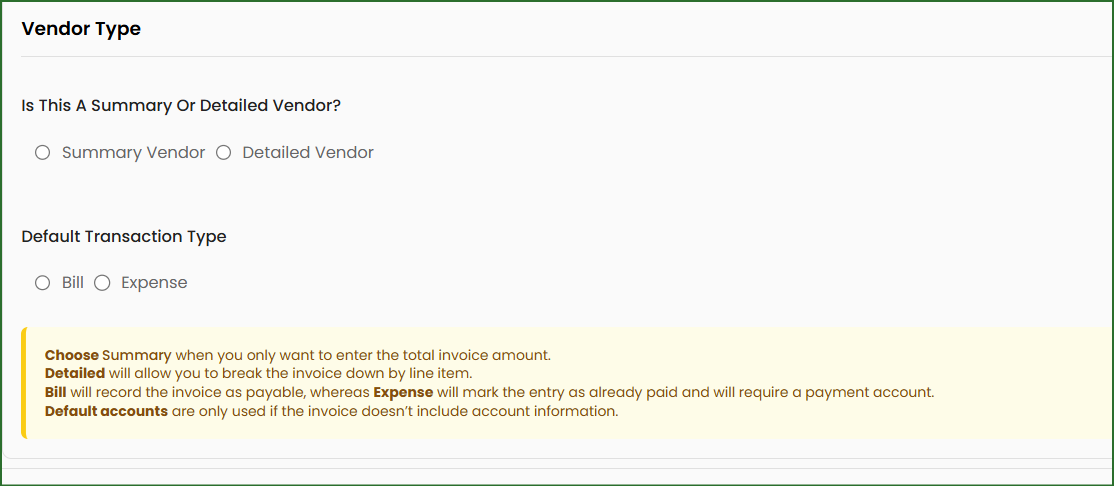
You can also set this vendor to Summary or Detail. Choose Summary when you don't need all line items and only want to enter the total invoice amount. Choose Detailed if you want to break down the invoice by line item. For the default transaction type, a bill will record the invoice as payable whereas the expense will mark it as already paid and will require a payment account.
You can also add and edit your vendors directly from a document.
If you already have a vendor chosen, the pencil icon will appear. This will open a modal to edit your vendor details. This can be especially important if your document has been processed as a summary and you need it processed as detail or vice versa.
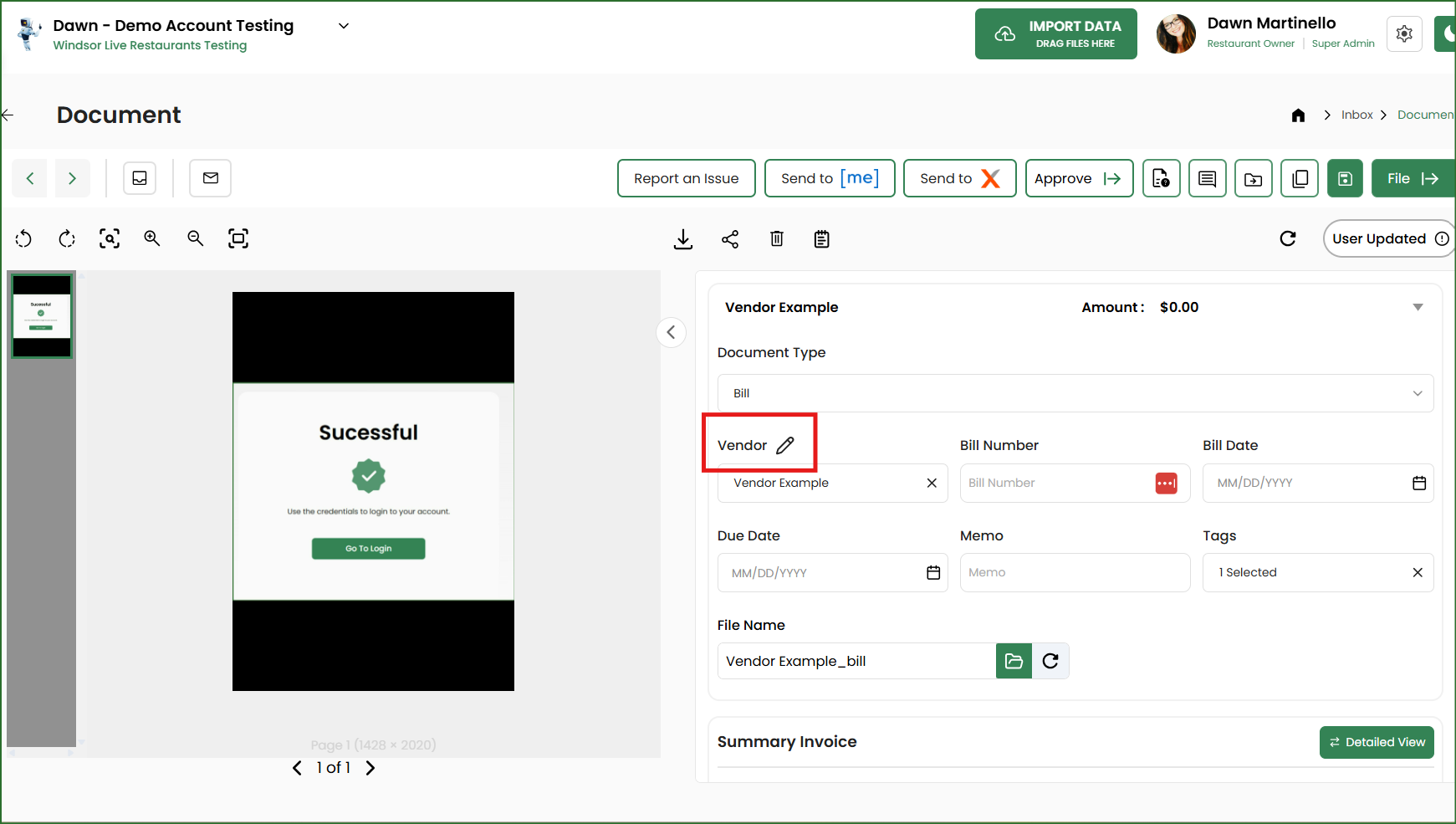
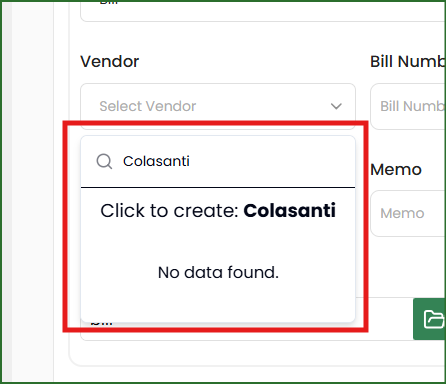
If you begin typing in the name of a vendor that does not exist, it will give you the option to create the vendor on the fly. Once you confirm you want to create the vendor, be sure to click the pencil icon to update the vendor