
Note: Members can only belong to one company unless they are part of a partner account. If you need a user added to more than one company, email support@clickBACON.com with the member’s name and email, the companies and locations they need access to, and their access level.
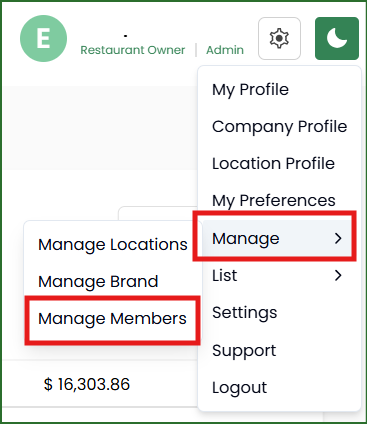
Click on the gear icon then hover over MANAGE and choose MANAGE MEMBERS.
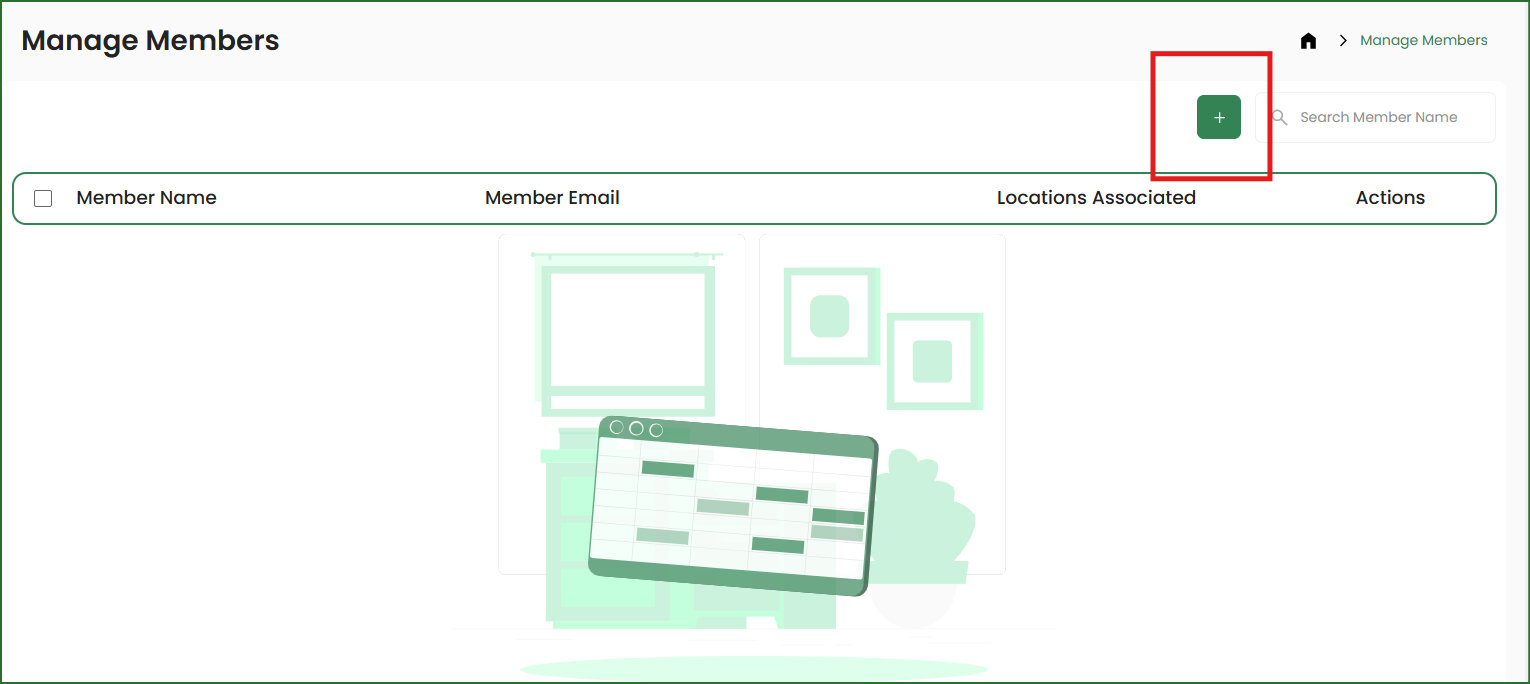
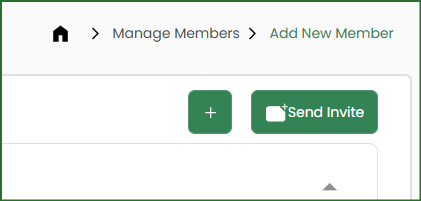
Click on the green + button.
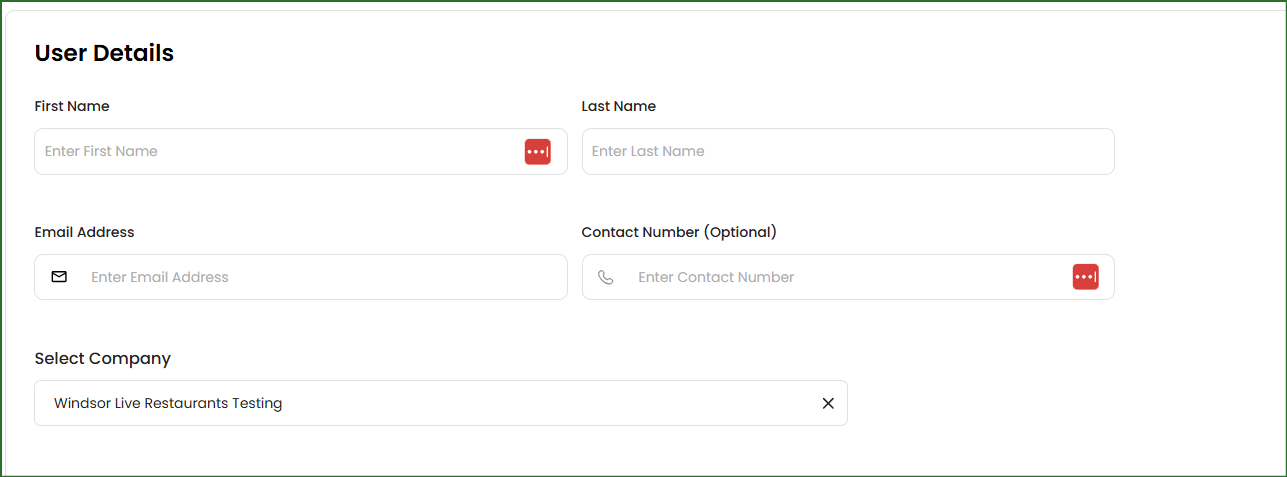
Enter the members contact information.
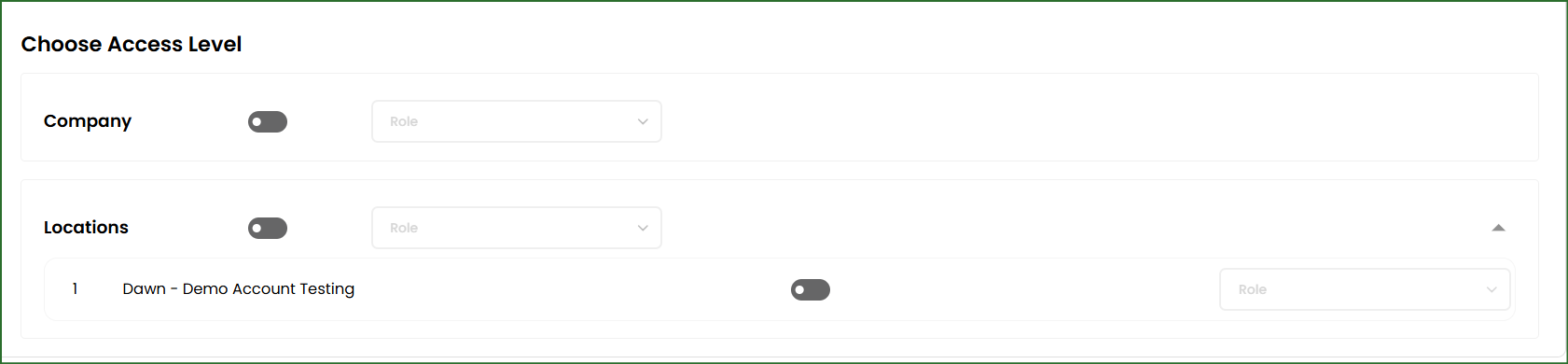
Choose their access levels.
If you turn the Company toggle on, you can choose one role they will have access to across any location within the company.
If you turn the Location toggle on, it will allow you to choose one role they will have across all current locations.
If you only want the member to access certain locations, you can turn the specific location toggle on and assign their role. You can also use this function if they have access to multiple locations but different roles in each.
Click here to see what permissions are available to each role type.
At the top of the page, click the green SEND INVITE button.
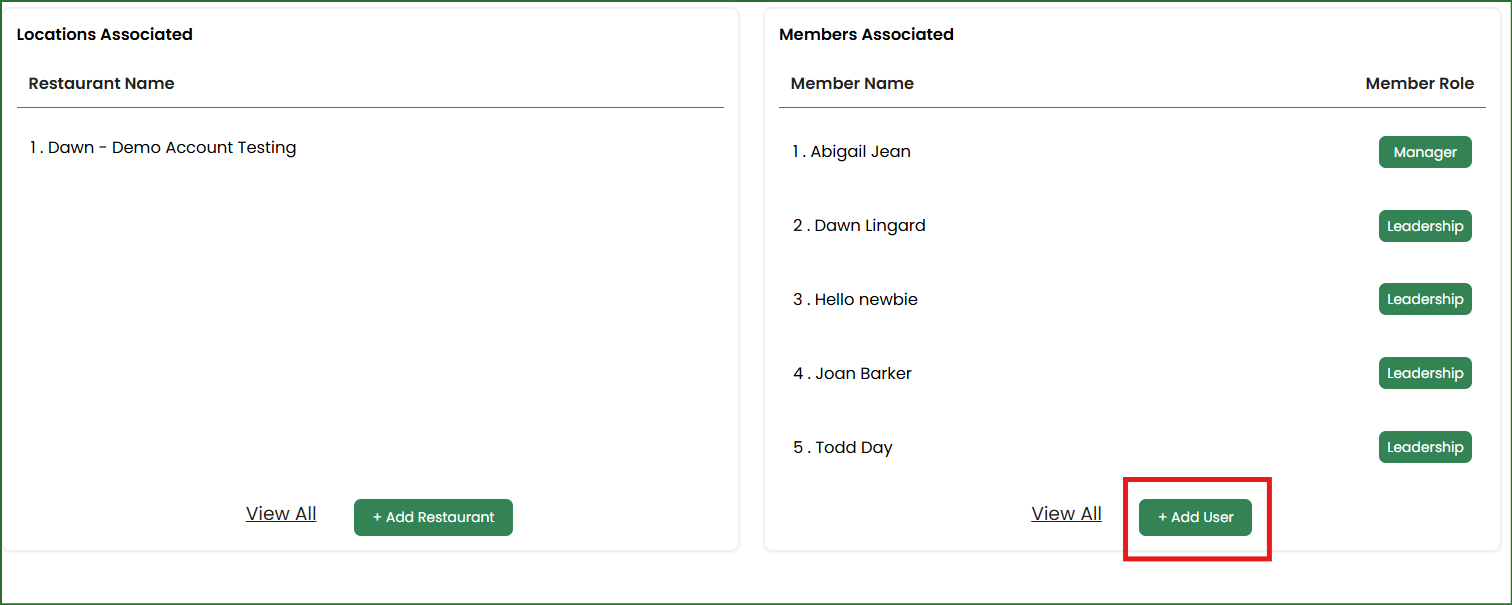
You can also add users from your Company Profile page.
Scroll down until you see the associated locations and members section and click on Add User.
Related Articles
Member Users & Permission Levels