
This API integration between Toast and clickBACON will allow us to pull in your daily sales and labor data. This will require a clickBACON Restaurant Intelligence or AI plan.
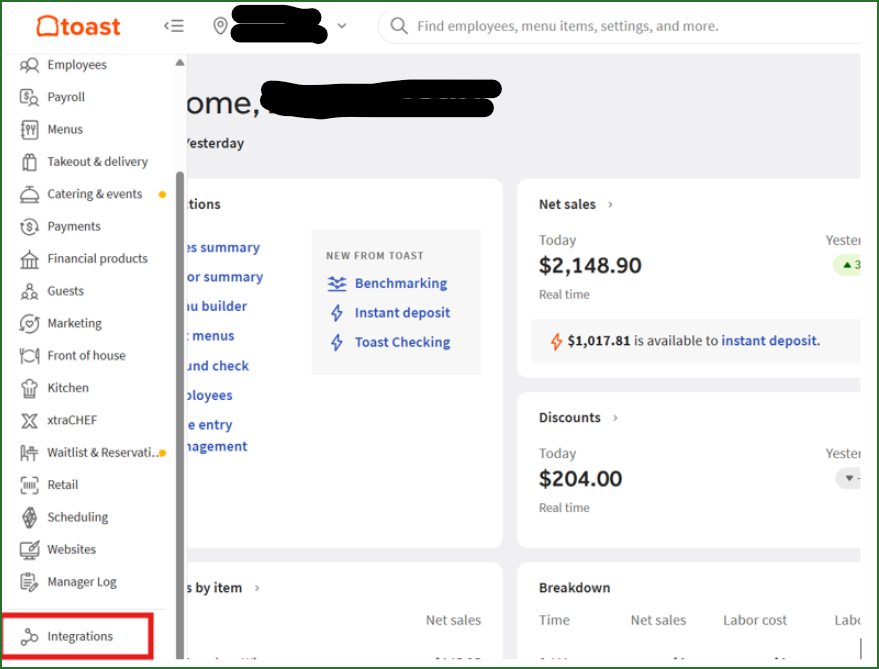
Log into your Toast account and scroll down to INTEGRATIONS on the left hand navigation.
If this is not visible, contact your administrator.
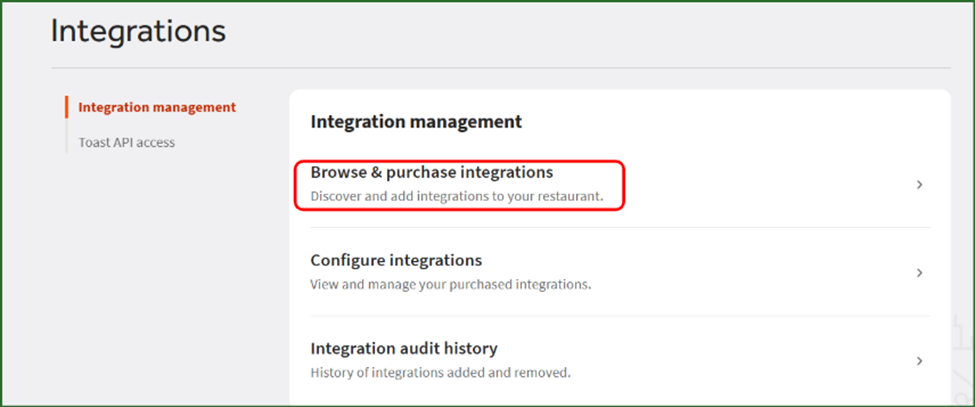
Under INTEGRATION MANAGEMENT choose BROWSE & PURCHASE INTEGRATIONS
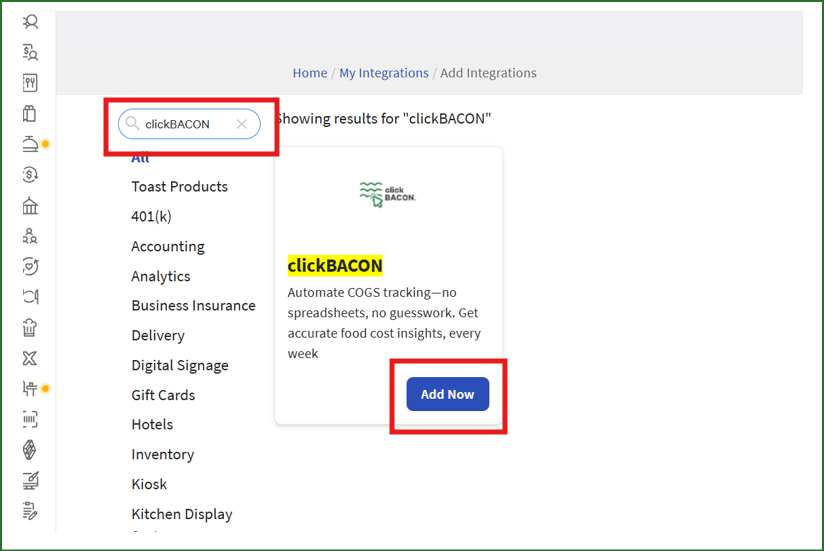
Search for clickBACON and click ADD NOW.
* * * * * * * * * * * * * * * * * * * * * * * * * * * * * * * * * * *
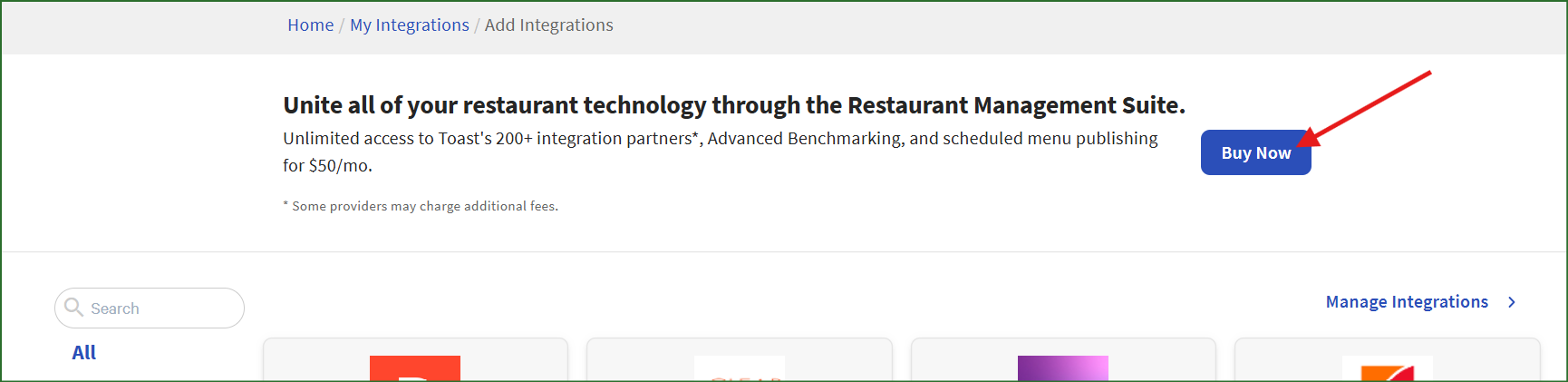
If you happen to see "Subscription Required" instead of the ADD NOW button, you will need to upgrade your Toast subscription to allow access to API integrations. You will see a banner with a BUY NOW button. Toast support can assist you if you have any issues with that upgrade.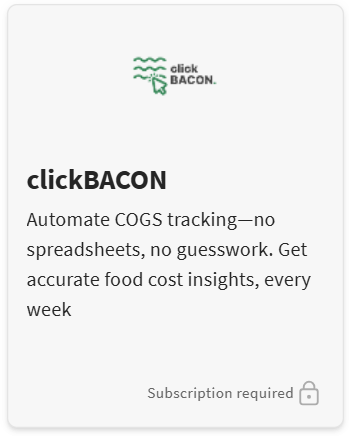
* * * * * * * * * * * * * * * * * * * * * * * * * * * * * * * * * * * *
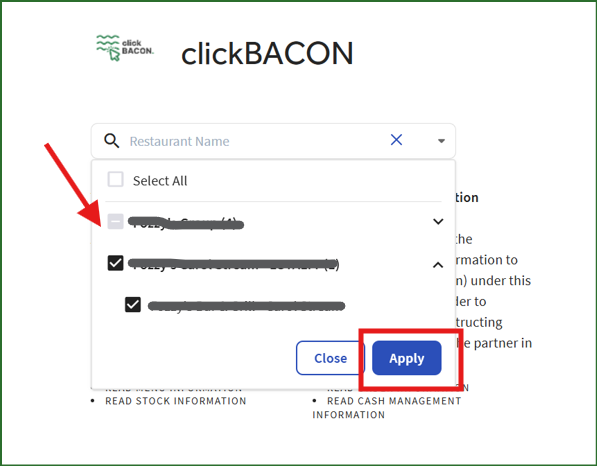
Select the locations you want to connect and then click APPLY.
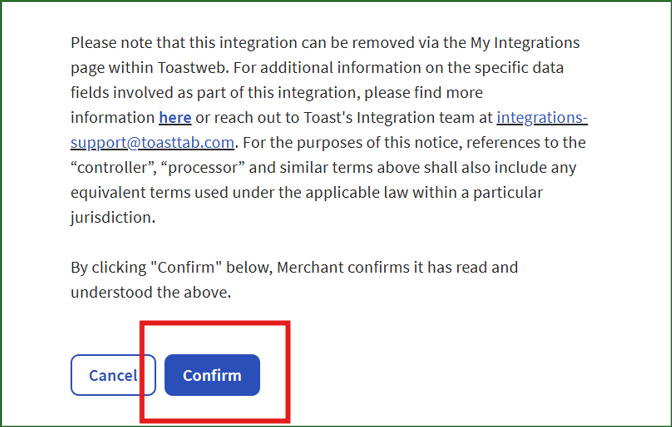
Select CONFIRM
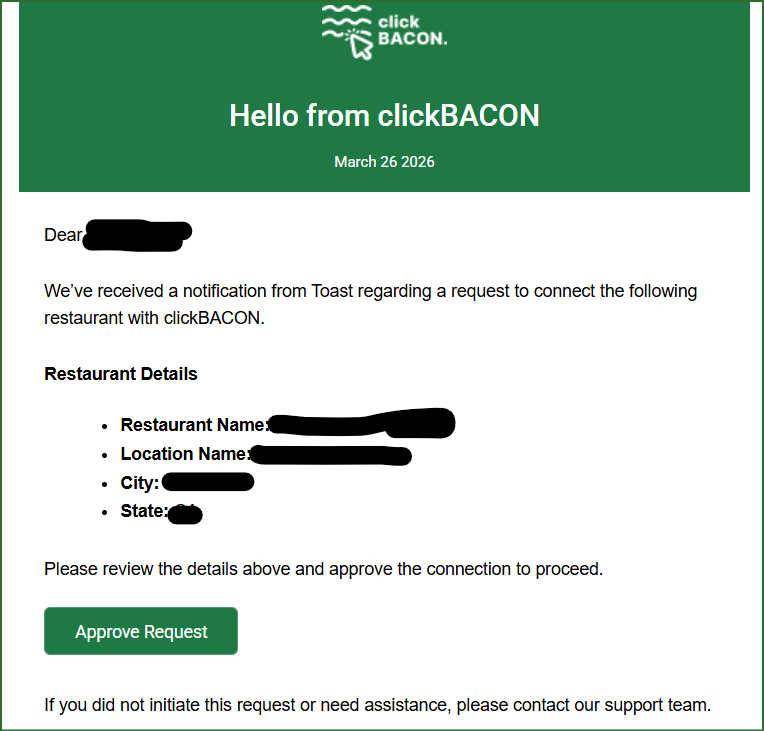
Click APPROVE REQUEST when you receive the email.
(if you are a partner, ensure you are in the correct company before proceeding)
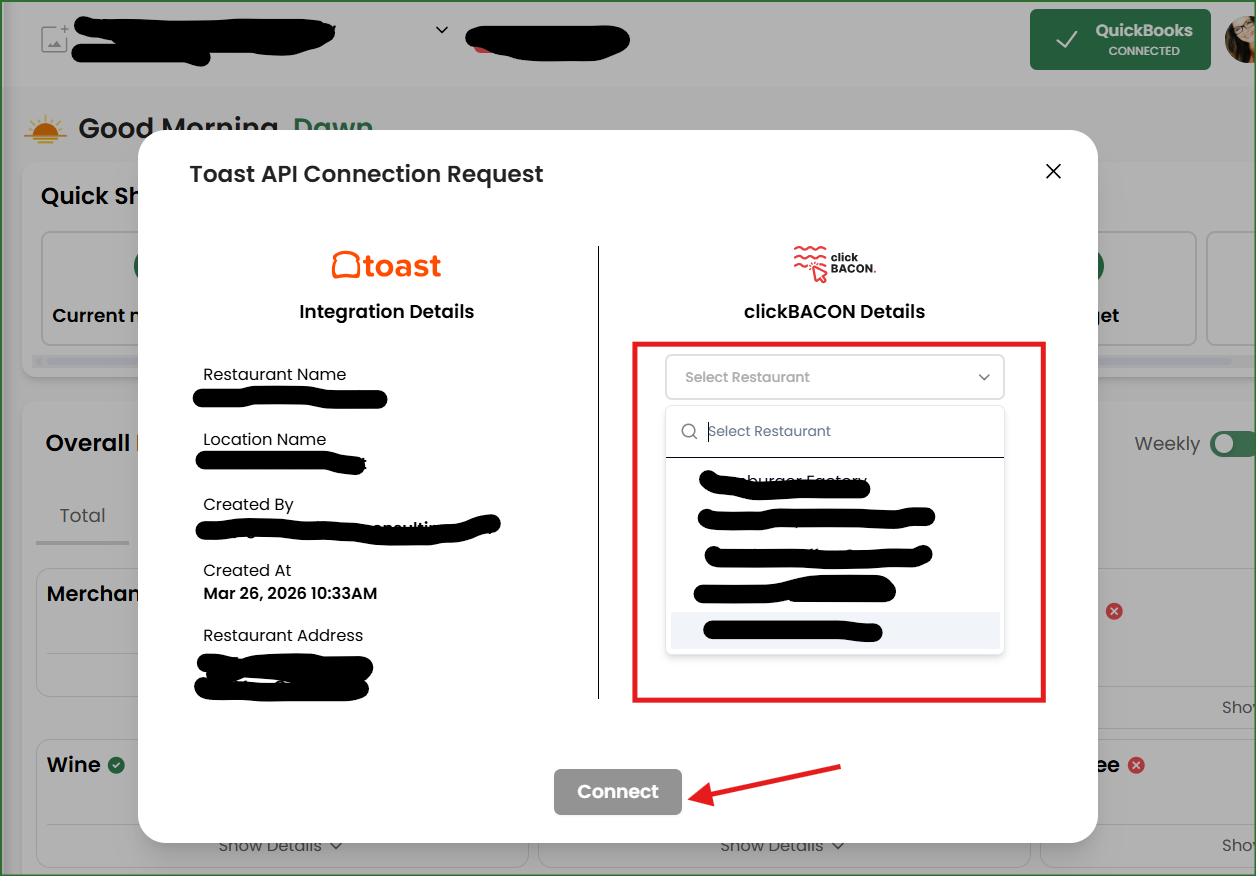
In the app, choose the correct clickBACON account from the right hand side, then click CONNECT.
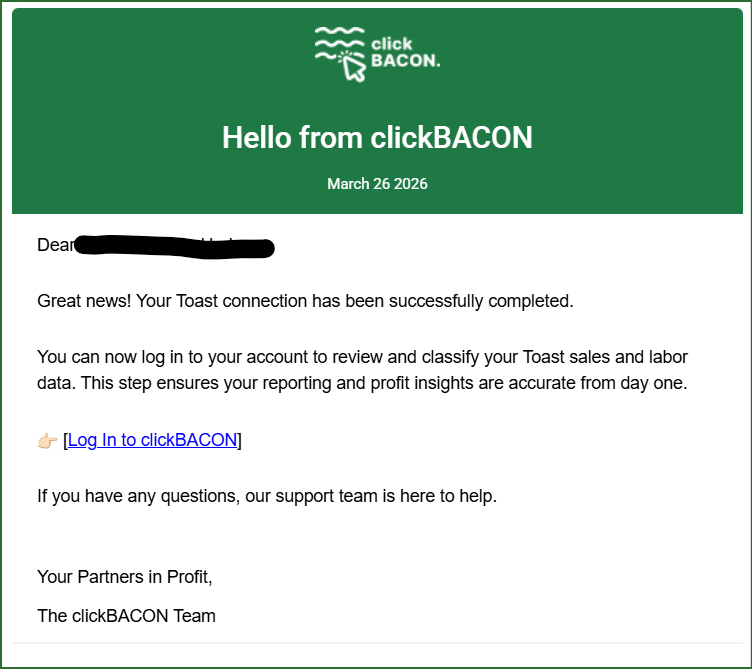
You will receive another email from clickBACON once the connection is finalized. Click on the Log In link. There will be a banner on your dashboard that will take you through the onboard wizard.
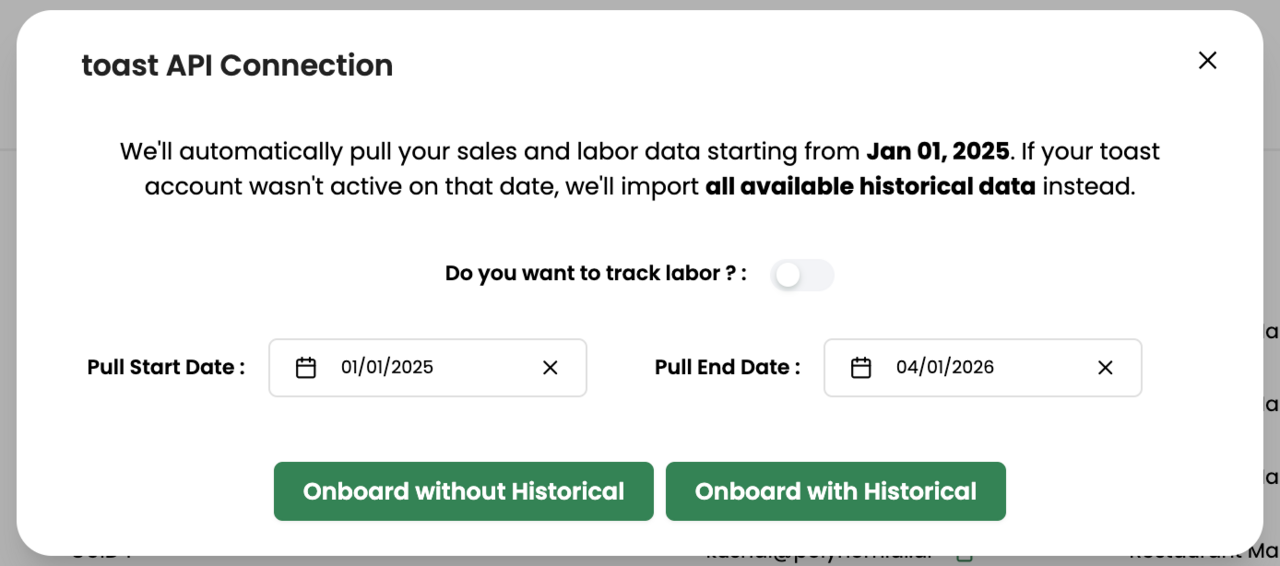
Onboarding Step 1: Turn on labor
If you would like us to bring that data in and choose whether or not you'd like to bring in any historical DSRs (Daily Sales Receipts)
A note about historical DSRs:
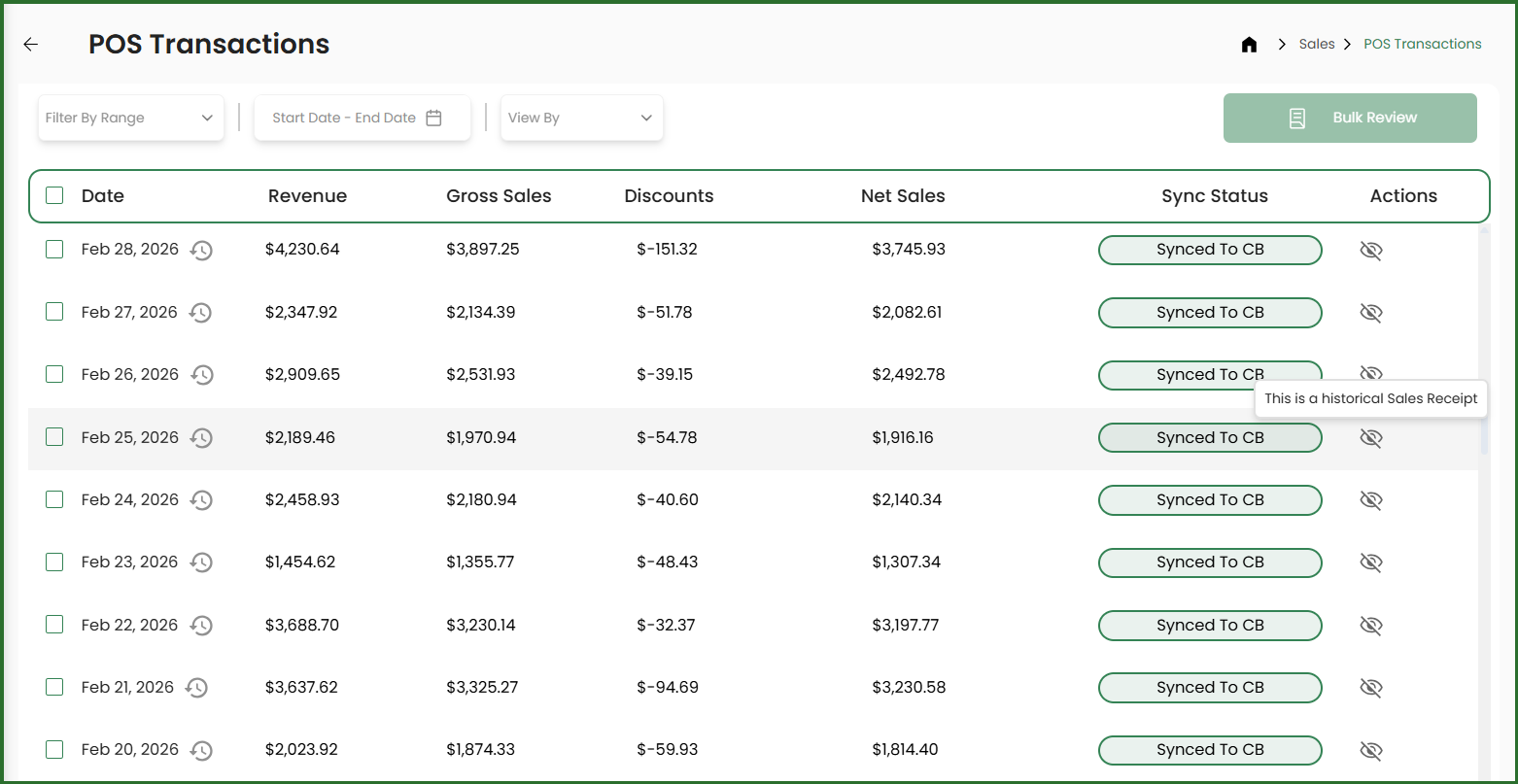
By default, historical DSRs are only synced to clickBACON and not eligible to sync to QuickBooks. They are for reporting purposes within clickBACON only.
In your POS transactions list, a historical DSR will look like this.
Onboard with Historical DSRs:
By default, we always bring historical data in from January 1 of the previous year. You can edit the Pull Start Date (or leave it at the default date) and then click Onboard with Historical button. You can choose to change some or all of these historical DSRs to "dailies" which can be pushed to QuickBooks in the next step.
Onboard without Historical DSRs
If you do not want to bring in any historical DSRs, just click the Onboard without Historical button.
Onboarding Step 2: Decide what day you would like to push data to QuickBooks.
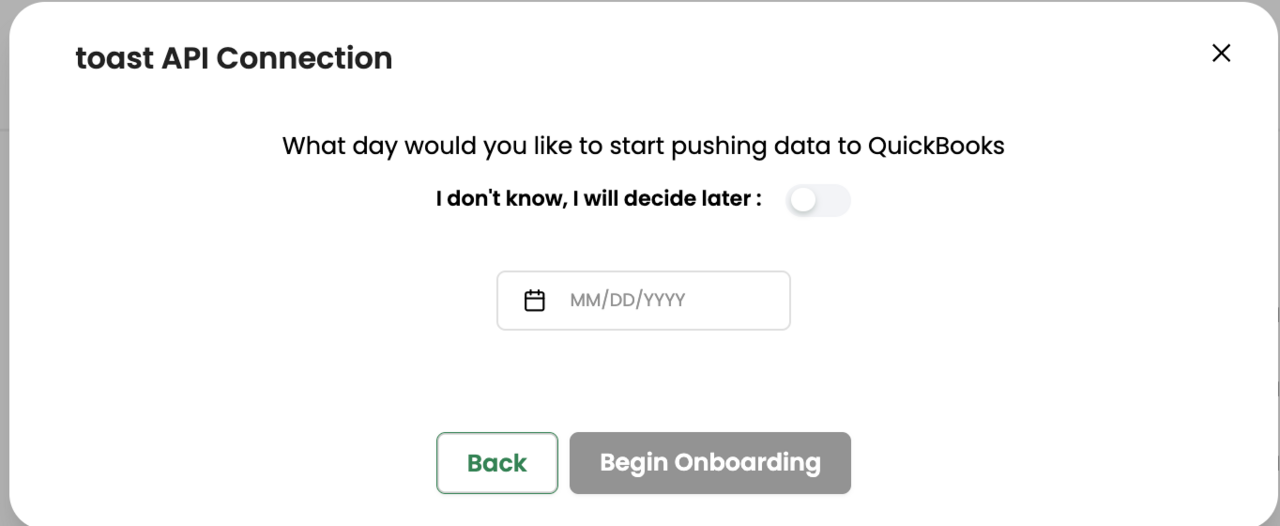
If you're nor sure, you can skip this step by toggling the "I don't know, I will decide later" on. This just means that all of your historical DSRs will not be able to sync to QuickBooks. If you change your mind, email support@clickbacon.com and let us know.
If you want to bring in your historical DSRs without sending them to QuickBooks, you can enter today's date in the field. The date that you enter means that that date plus all subsequent dates will be brought in as "dailies" which can then be synced to QuickBooks.
Onboarding Step 3: Follow the instructions on screen as it walks you through classifying your sales, discounts, and labor.