You can forward emails from Gmail directly into your restaurant’s clickBACON Document Manager. This allows invoices, receipts, or statements sent to your email to be delivered straight into clickBACON.
1. Click on the gear inside your Gmail account.

2. Click on SEE ALL SETTINGS

3. Click on Forwarding and POP/IMAP

4. Click on ADD A FORWARDING ADDRESS

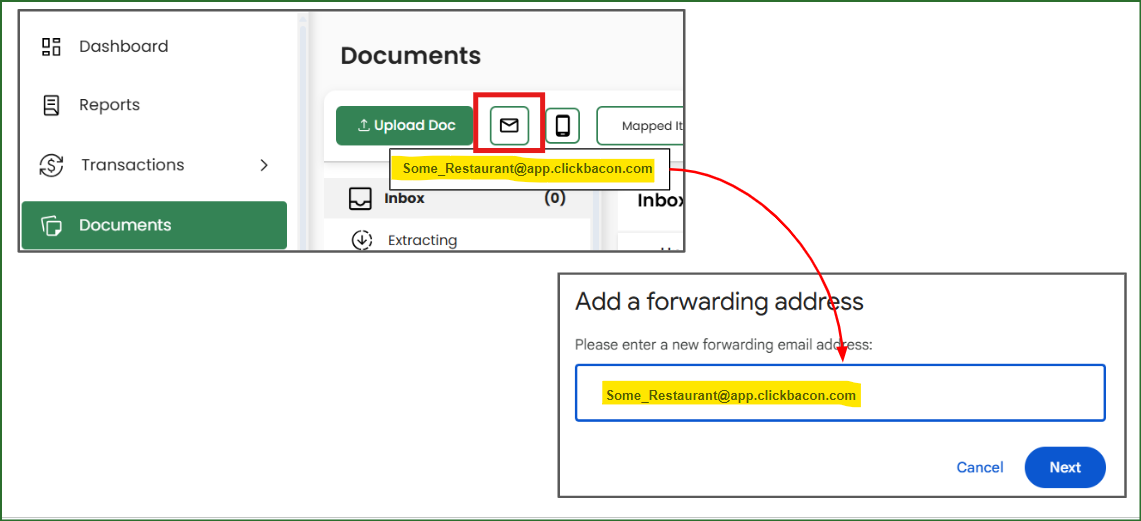
5. Click on DOCUMENTS and then copy your clickBACON document email address. Paste this into the forwarding address text box in Gmail.
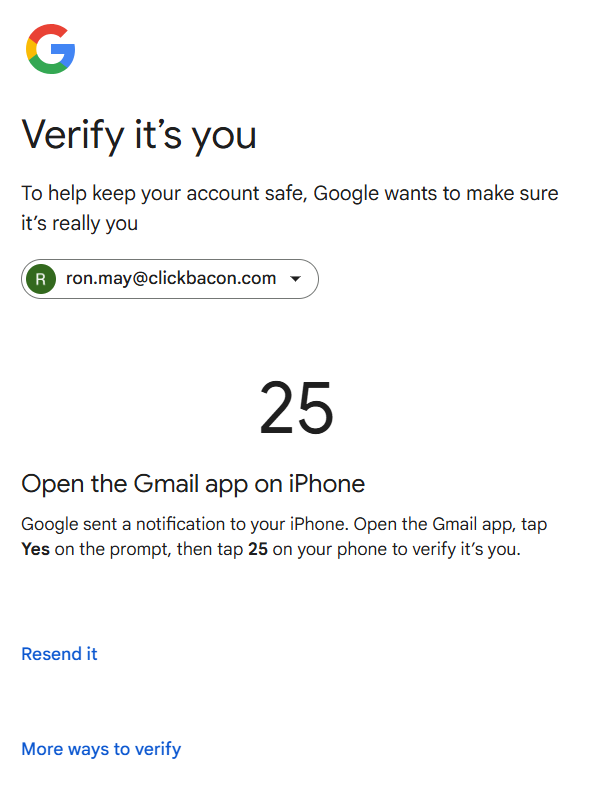
6. You may be asked to verify your identity. Follow the instructions provided by Gmail.
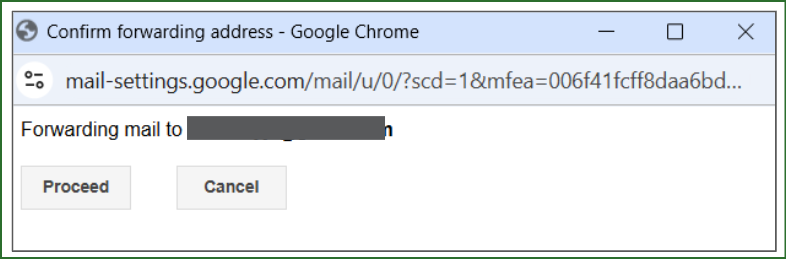
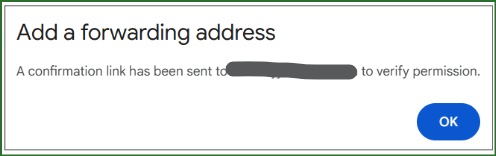
7. Click PROCEED and OK. This will send an email to your clickBACON document email for verification.
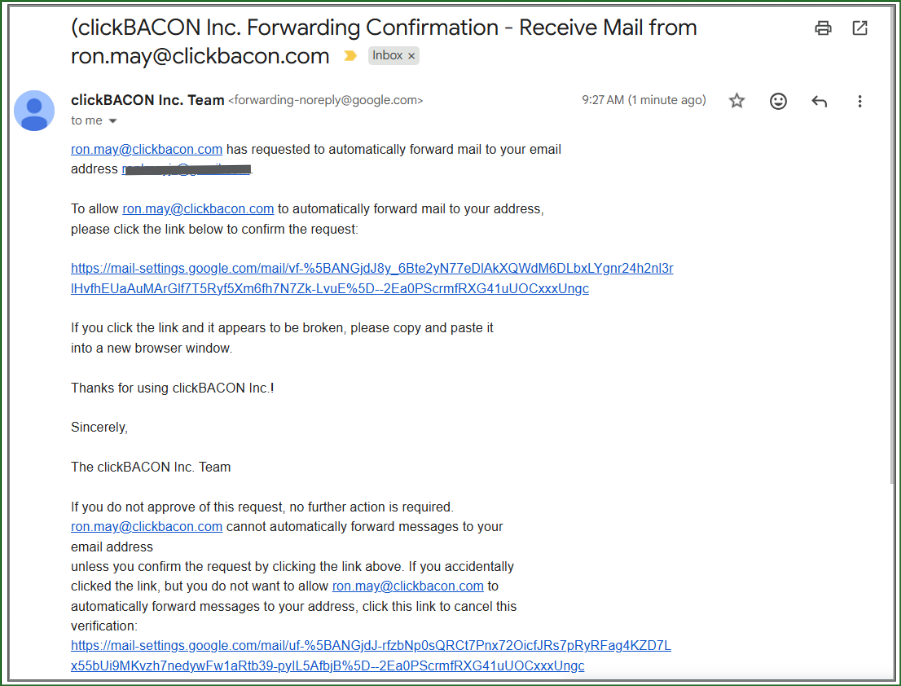
8. Inside your clickBACON account, go back to the DOCUMENTS module. Find the email asking you to approve the email forward. The link from that email will be in the notes section of your document.
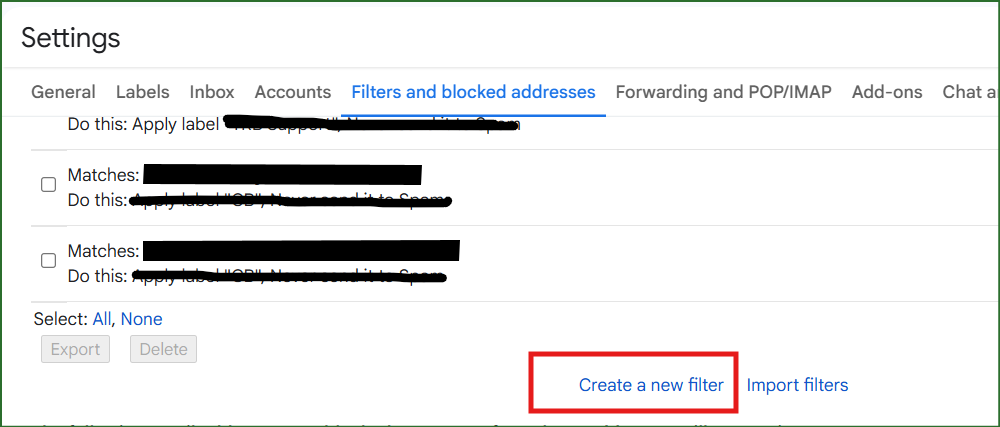
9. Back in your Gmail account, click on Filters and Blocked Addresses. Scroll down and click on CREATE A NEW FILTER
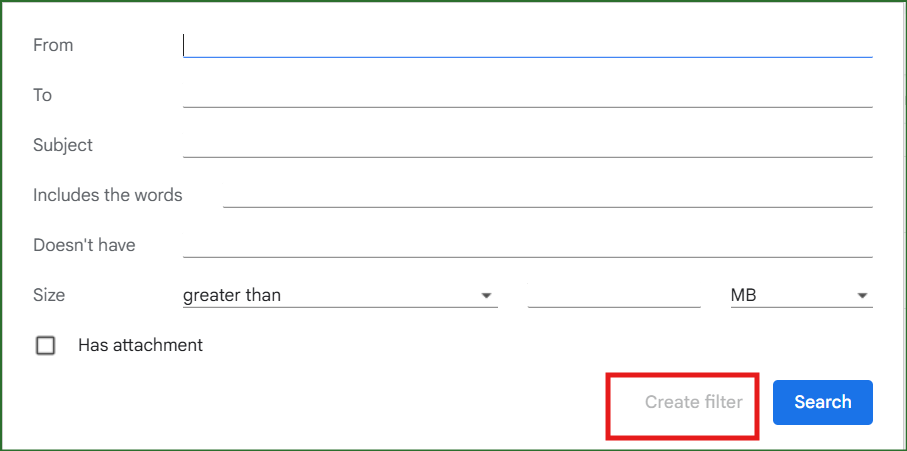
10. Create the filter based on the emails that you want to forward to clickBACON then click CREATE FILTER.
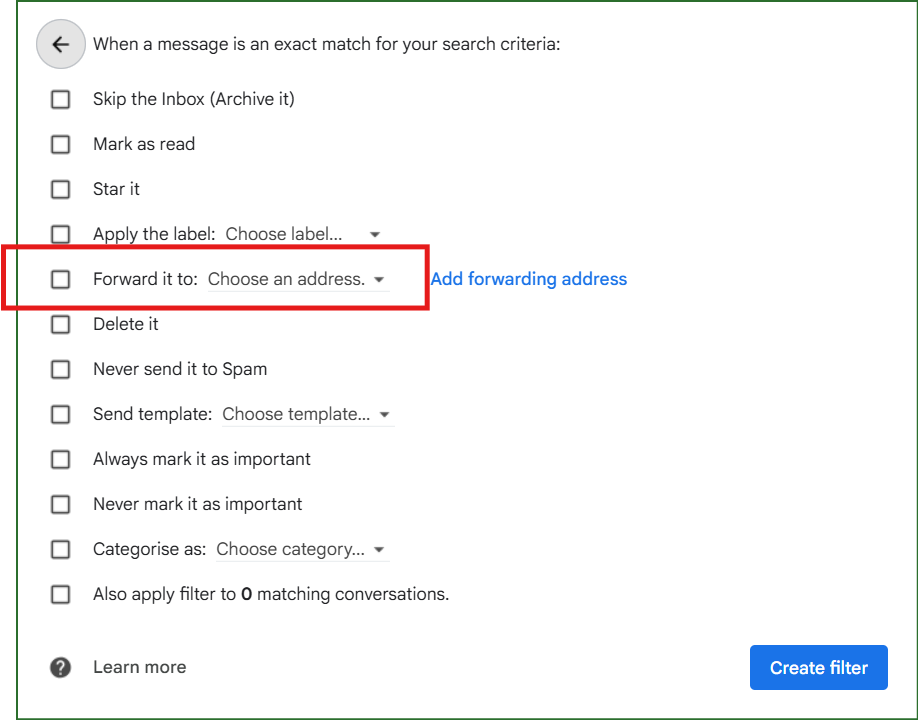
11. Choose your clickBACON Document email address from the drop down and click CREATE FILTER.