
ADOPTING A CURRENT CLICKBACON ACCOUNT.
If your client has a clickBACON account now that you would like to adopt into your firm, please submit a request to support@clickBACON.com.
We will need to know:
- Your Partner account
- The company that you are adopting
- Whether we should bill your firm or directly paid by the customer
- If you would like the account to be set up with Document Extraction, Document Management or Full Suite
Once we have added the Company to your Partner Firm, you can make any additional QuickBooks or R365 connections needed.
ADDING A NEW CLICKBACON ACCOUNT.
If your client does not have a clickBACON account you will need to create the company and locations.
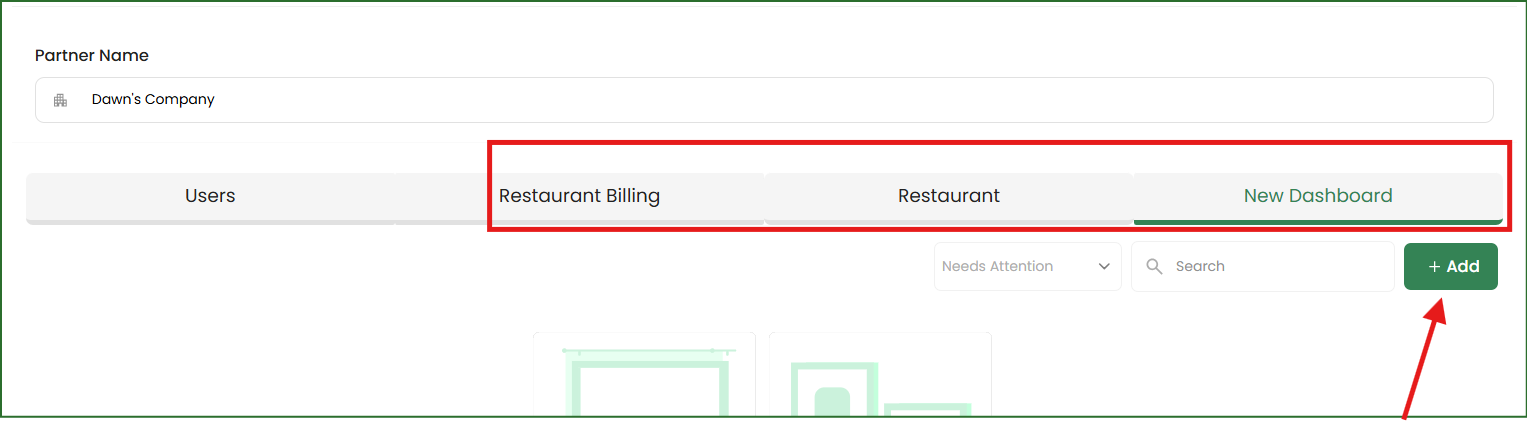
On your partner dashboard, ensure you are on one of these 3 tabs. Click ADD then choose CREATE NEW COMPANY.
Enter the Company name, choose the accounting system and the billing type. You will be able to add the individual locations at a later step.
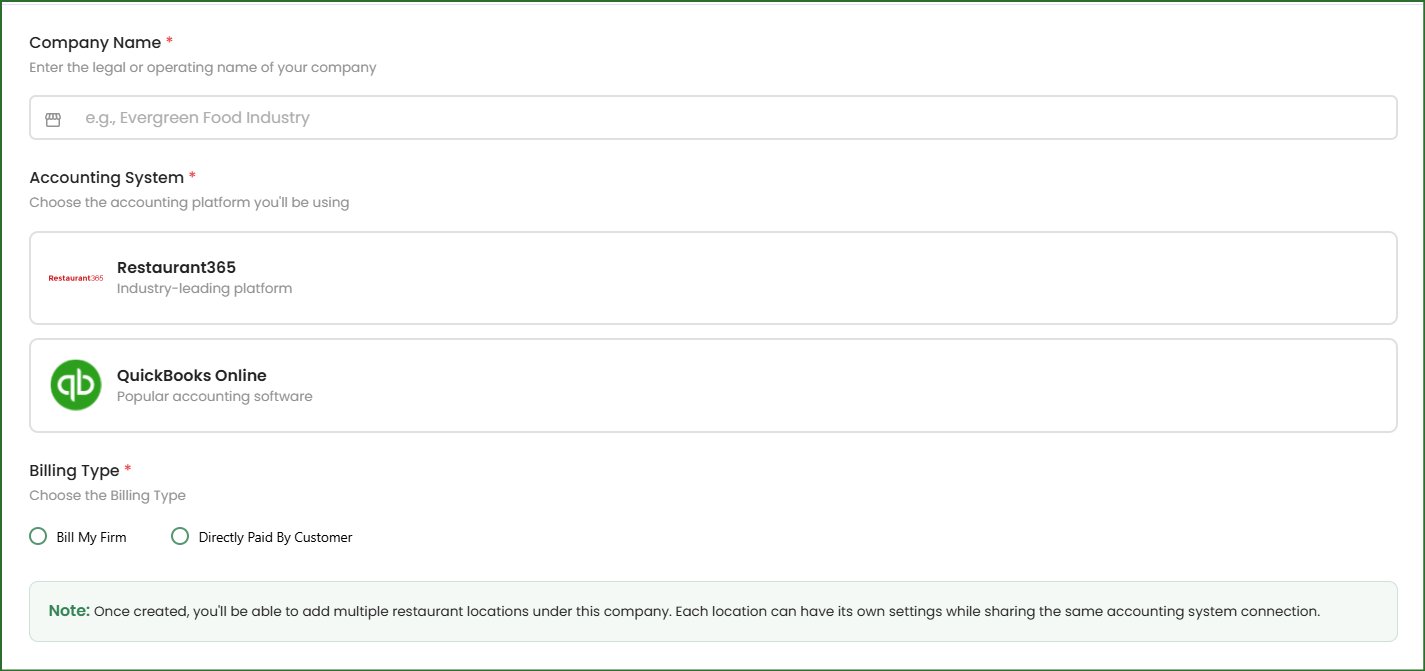
Bill My Firm: choose one of the 3 options:
Document Extraction
Document Management
Full Suite
Directly Paid by Customer: A subscription plan and payment method will need to be set up. They will be billed directly through the software. The customer will need to log in and add their billing details within 14 days.
Click the CONTINUE button.
IF THE COMPANY USES QUICKBOOKS ONLINE
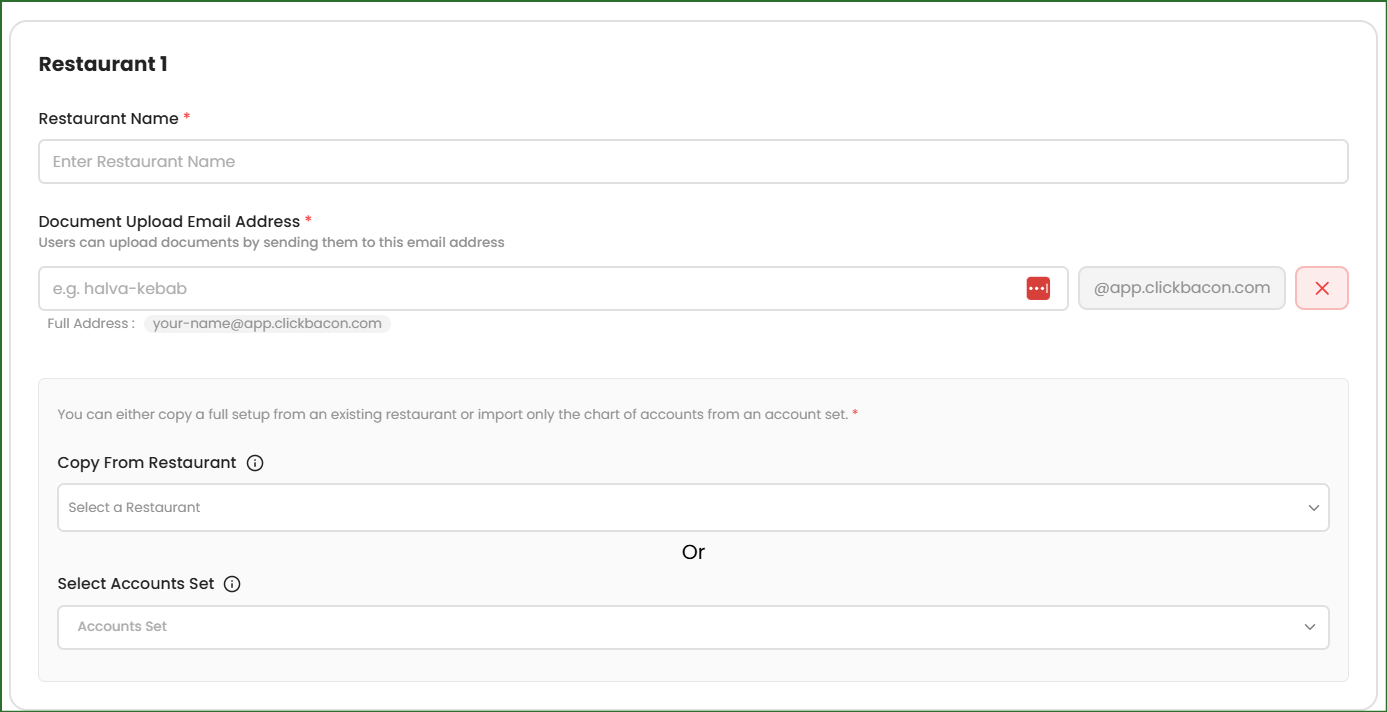
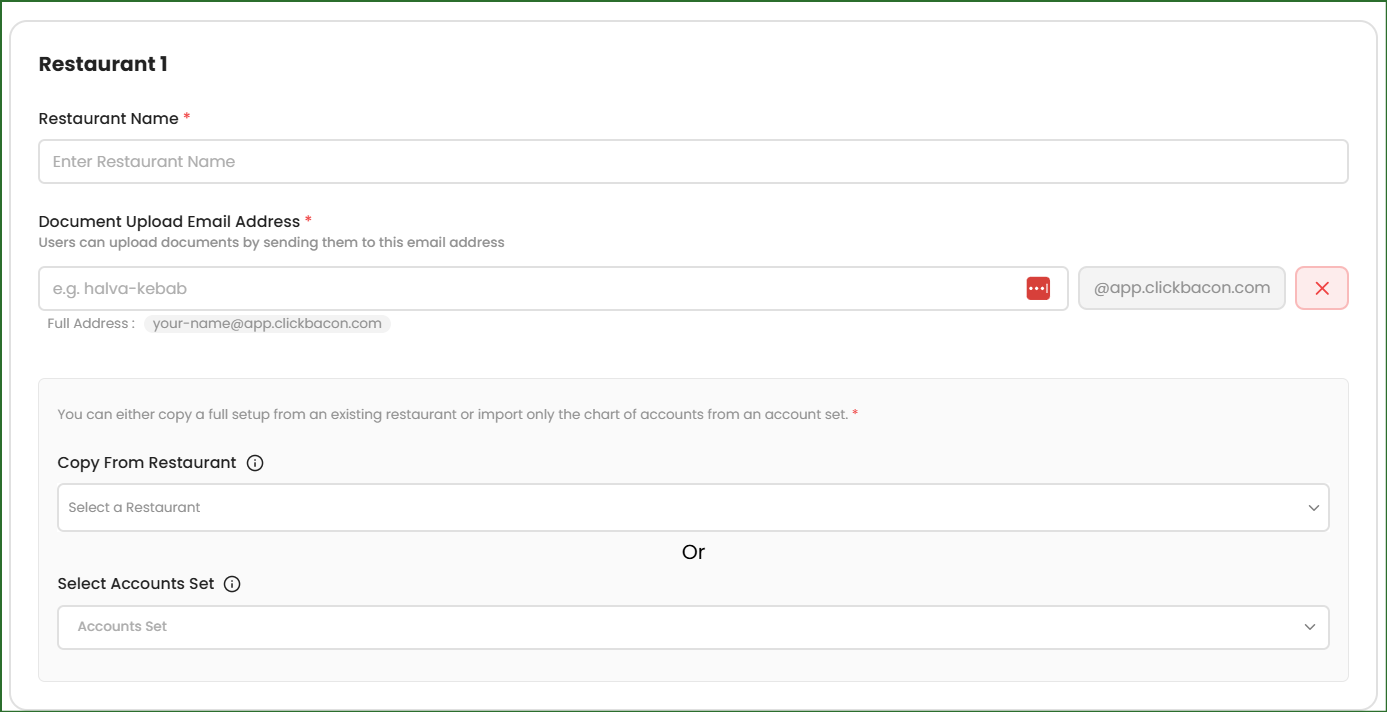
1. Enter the name of the first restaurant location, create the document upload email address (we populate this based on your restaurant name but you can shorten or change this), and choose your chart of accounts.
Copy From Restaurant - if you have other restaurants within your Partner Firm, you can copy their Chart of Accounts to this new company.
Select Accounts Set - choose the detailed or minimum chart of accounts.
2. If there are additional locations for this company, click ADD ANOTHER RESTAURANT.
3. Click ADD RESTAURANT when all locations have been added
.
IF THE COMPANY USES R365
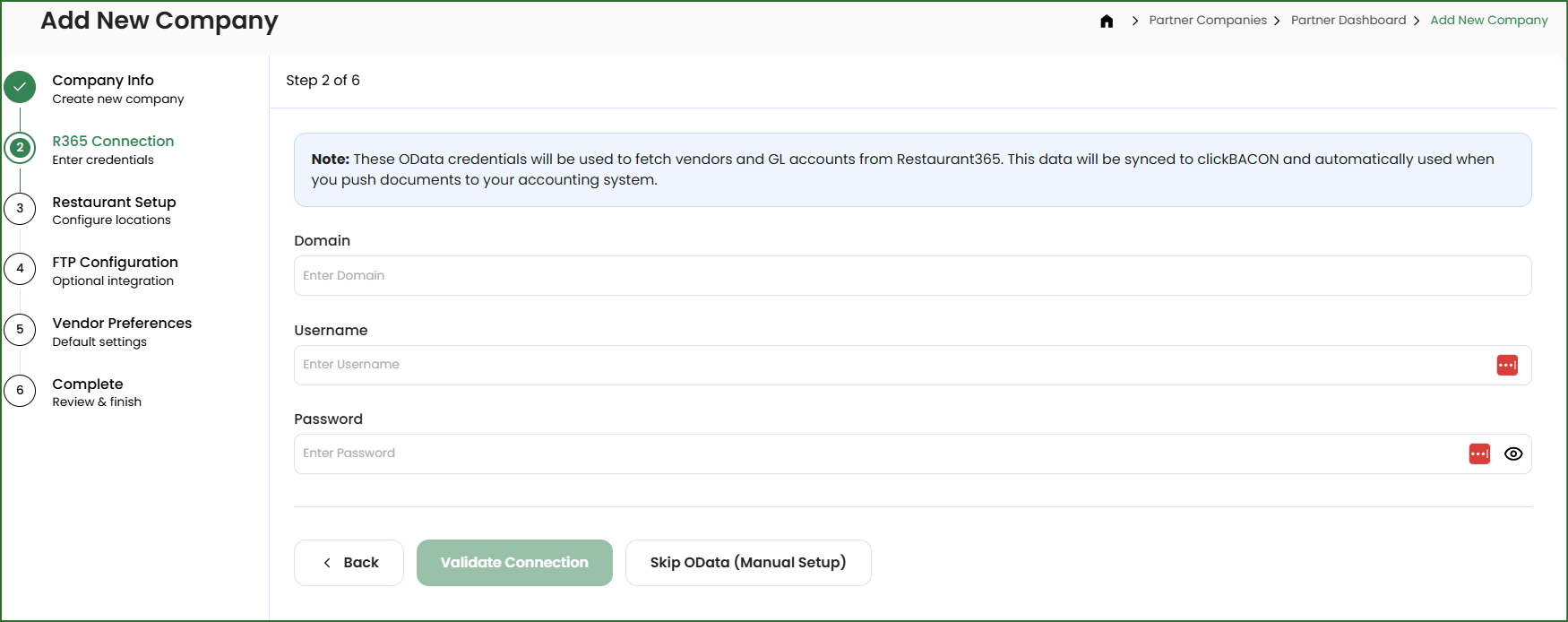
*Before you begin, please ensure you have the OData (Full Access) and FTP credentials. While you can successfully complete the onboarding process without them, it will not be fully functional. Having the OData credentials before beginning will also allow us to auto-populate all locations for you.
1. Enter your OData credentials. Ensure your access is FULL ACCESS. If you don't know this, you can skip for now but you will need these credentials for your connection to function properly and pull your vendors and GLs. You can update this at a later date by going to SETTINGS → API INTEGRATIONS and then clicking VIEW .
2. Enter the name of the first restaurant location, create the document upload email address (we populate this based on your restaurant name but you can shorten or change this), and choose your chart of accounts.
Copy From Restaurant - if you have other restaurants within your Partner Firm, you can copy their Chart of Accounts to this new company.
Select Accounts Set - choose the detailed or minimum chart of accounts.
If there are additional locations for this company, click ADD ANOTHER RESTAURANT.
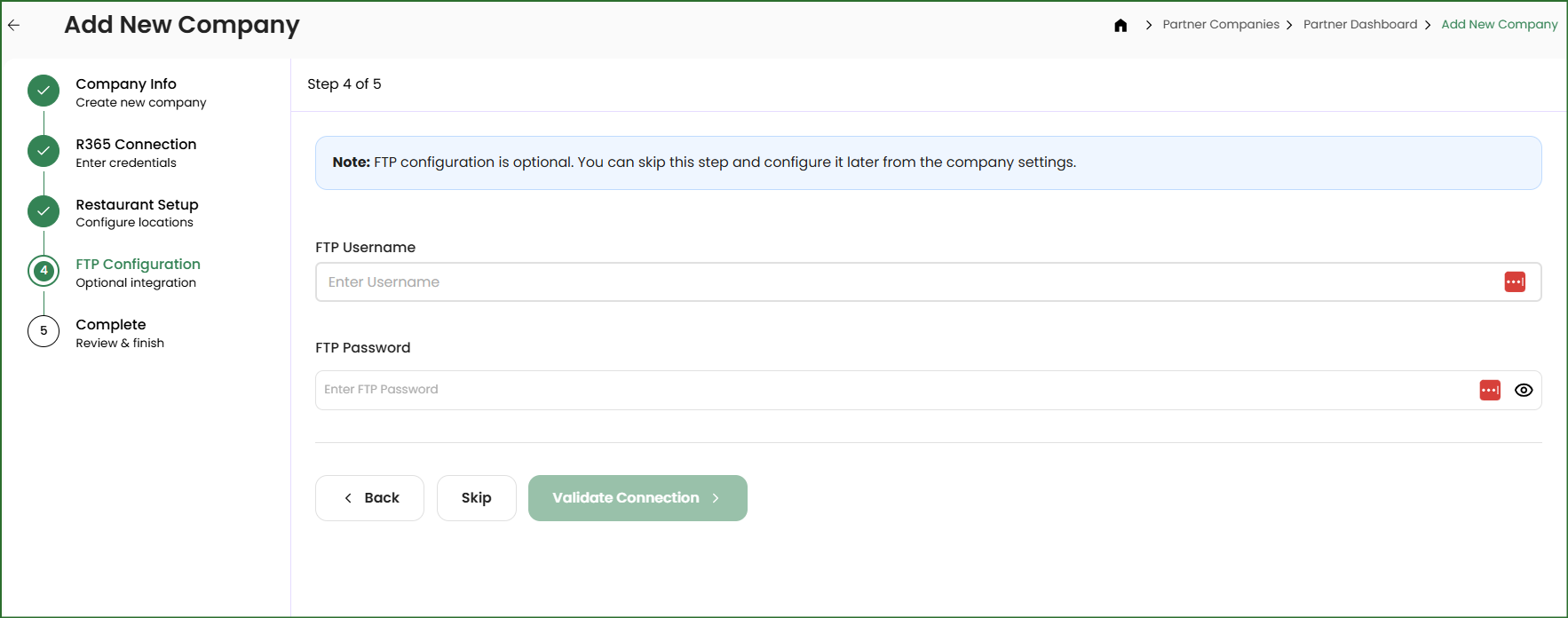
3. Enter the FTP credentials. You can skip this step if you don't have the information but you will need these credentials for your connection to function properly to push your data. You can update this at a later date by going to SETTINGS → API INTEGRATIONS and then clicking VIEW .
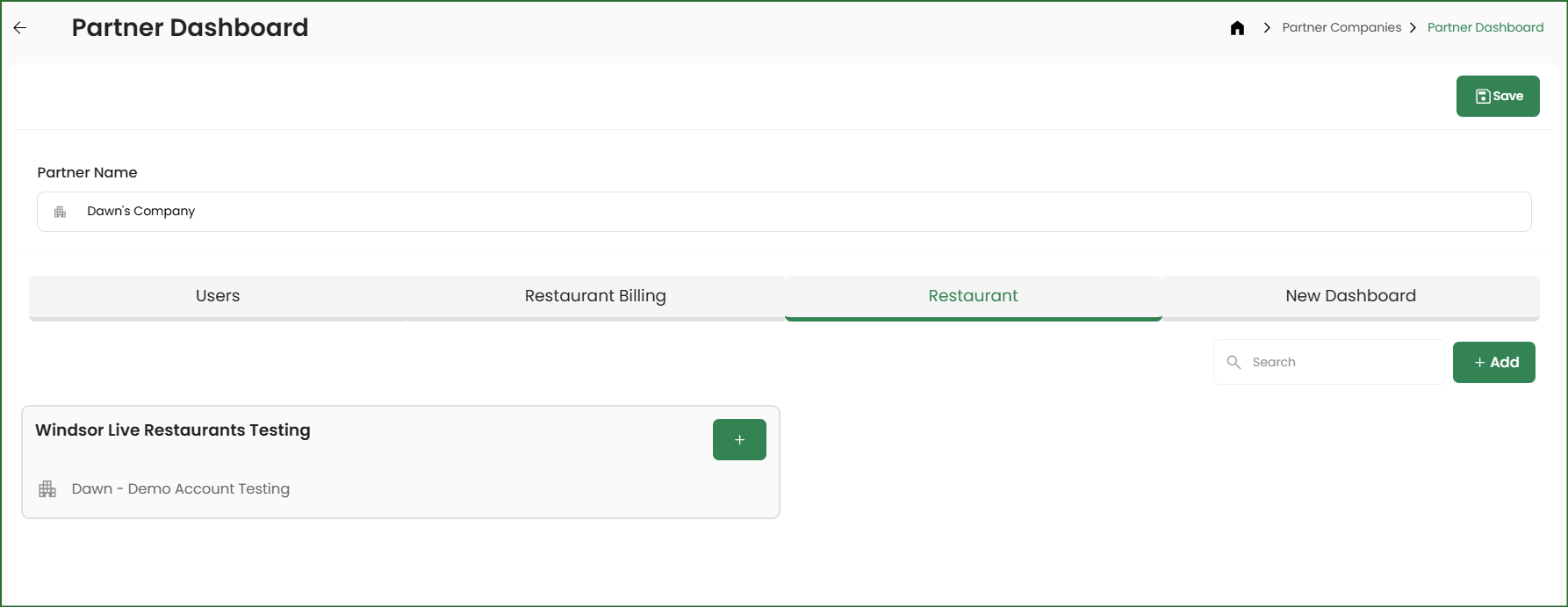
Your companies will now appear on your dashboard under the RESTAURANT tab.
If they are using QuickBooks, be sure to go into each location and connect their account.
Related Articles