clickBACON automatically filters out emails that contain only an image, such as a logo or email signature graphic, to prevent unnecessary documents from being created in your Document Manager.
When one of these emails arrives, it will appear in your Extracting folder briefly while the initial OCR runs, then disappear. This is expected behavior. The system has identified that the email contains only an image and has blocked it rather than creating a document from it.
Viewing Blocked Documents
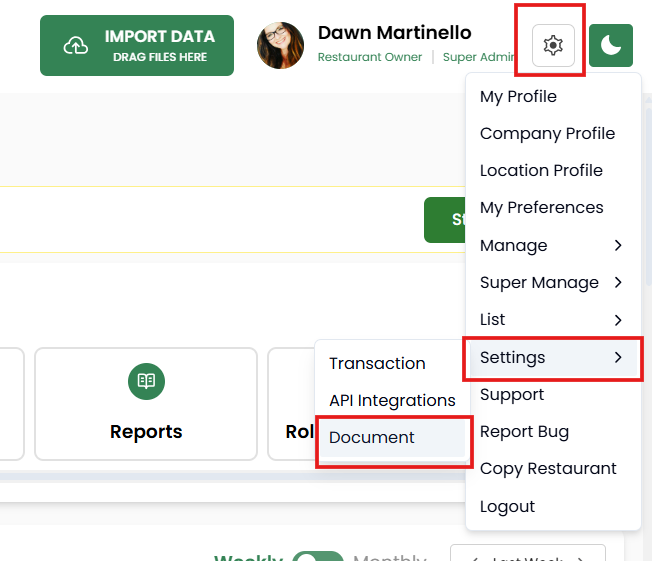
To see everything that has been blocked, go to the gear icon in the top right hand side of your screen, select Settings then Documents, and scroll down to the Blocked Documents section. Click Manage to open the full list.

From here you can search by:
- Block type: filter by user blocked (something you chose to block yourself) or rejected as logo (something the system identified as an image only)
- File name: search for a specific file
Unblocking a Document
When you find the image you want to recover, you have two options:
Unblock Only: a pop-up will ask which folder you want to move the document into. From there you can file it as needed.
Unblock and Reprocess: this will automatically unblock the document and send it through processing. You won’t be asked to choose a folder. The document will appear in your Extracted folder once processing is complete.
Blocking a Document Yourself
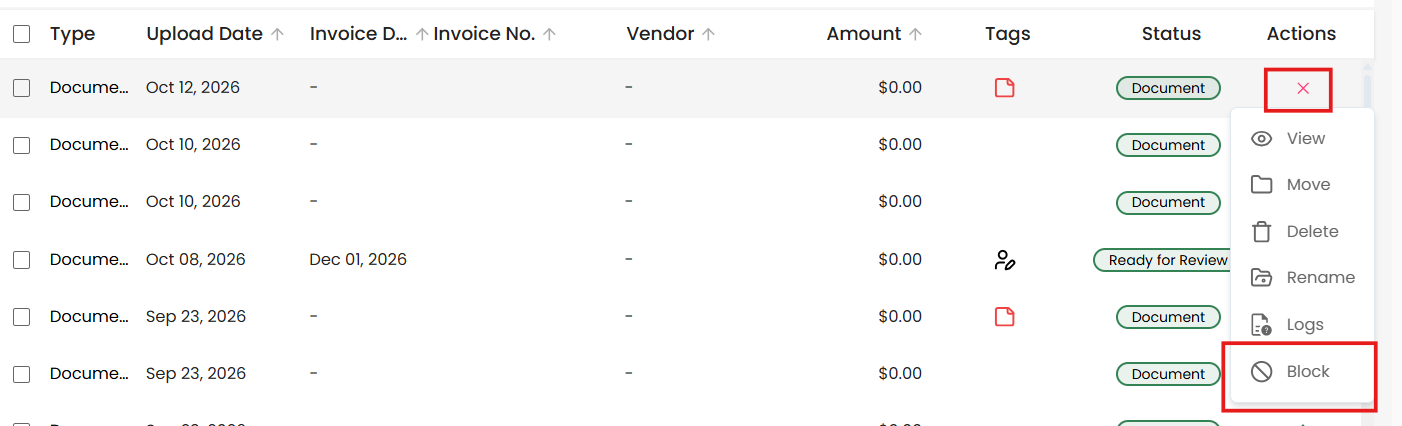
If a document has been created from an image that you don’t want, you can block it manually. From the main document list, click the three dots next to the document and select Block at the bottom of the menu. This will move it into the Blocked Documents section.