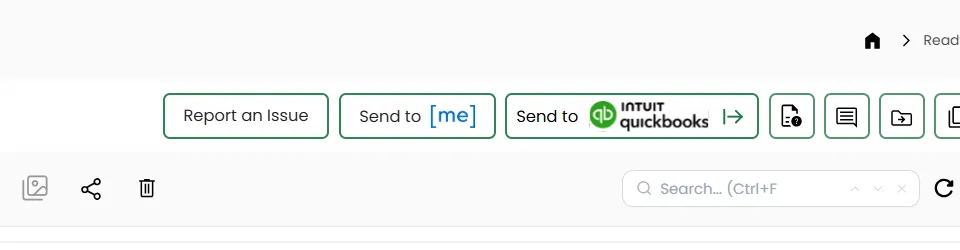
One-Click Forwarding lets you send a document from clickBACON directly to your MarginEdge or xtraCHEF account with a single click. Before you can use it, the feature needs to be enabled and configured in your settings.
Setting Up One-Click Forwarding
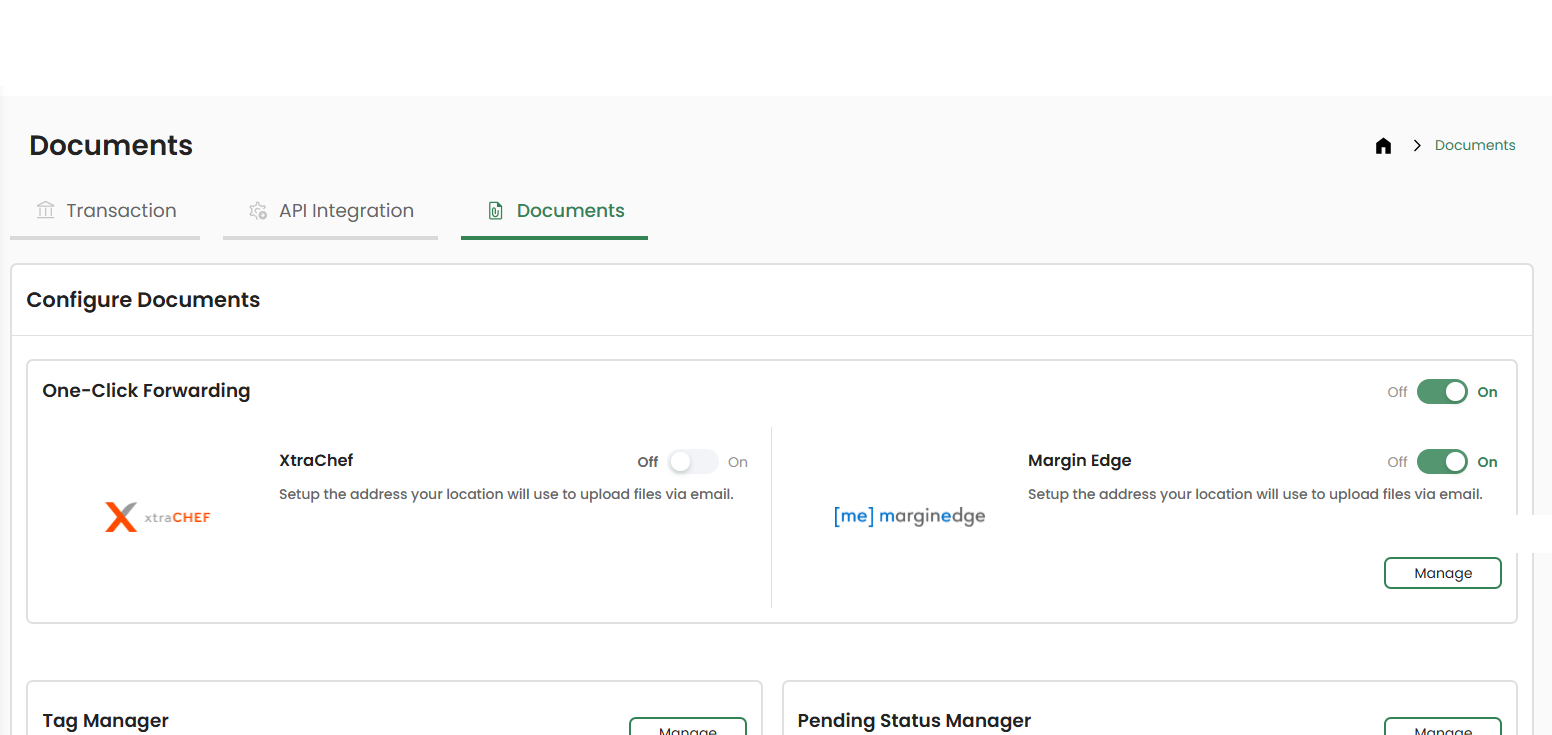
Go to the gear icon in the top right hand corner of the page next to your profile image. Click on Settings > Documents. You will see a One-Click Forwarding section with a master toggle. Turn this on first.
Once the master toggle is on, you will see individual toggles for XtraCHEF and Margin Edge. Enable the platform you use. When you turn on a platform, a Manage button will appear. Click Manage to enter the email address for your account. This address comes from your MarginEdge or xtraCHEF account directly.
Forwarding a Document
Once One-Click Forwarding is set up, open any document in clickBACON. A button will appear on the document that lets you send it directly to your connected platform. Forwarding is done manually on a per-document basis -- documents are not sent automatically.