You have the ability to control how clickBACON reads invoice numbers for specific vendors with Custom Invoice numbers.
This setting is available on your Vendor Detail page. You can reach that by clicking on the gear icon next to your name, hovering over LISTS and then VENDORS. You can also access the vendor screen directly from your document by clicking on the pencil icon on the vendor drop down.
Without Account Number
This is location specific. You can choose a custom prefix that we will insert before the date to create the new invoice number. Each location can have its own format, so invoices from different locations for the same vendor won’t conflict with each other.
Clean Up Invoice Number
This option lets you add, remove, or replace text at a specific position in the invoice number.
clickBACON will identify duplicate invoices but if a vendor uses one invoice number on a paper invoice and another on the EDI, the system will not match those which can create issues in different situations like trying to attach invoices together in R365.
A common example: Cheney Brothers adds “-01” to the beginning of their EDI invoices. clickBACON sees that as a different invoice each time, breaking duplicate detection. You’d use Clean Up Invoice Number to strip that prefix out.
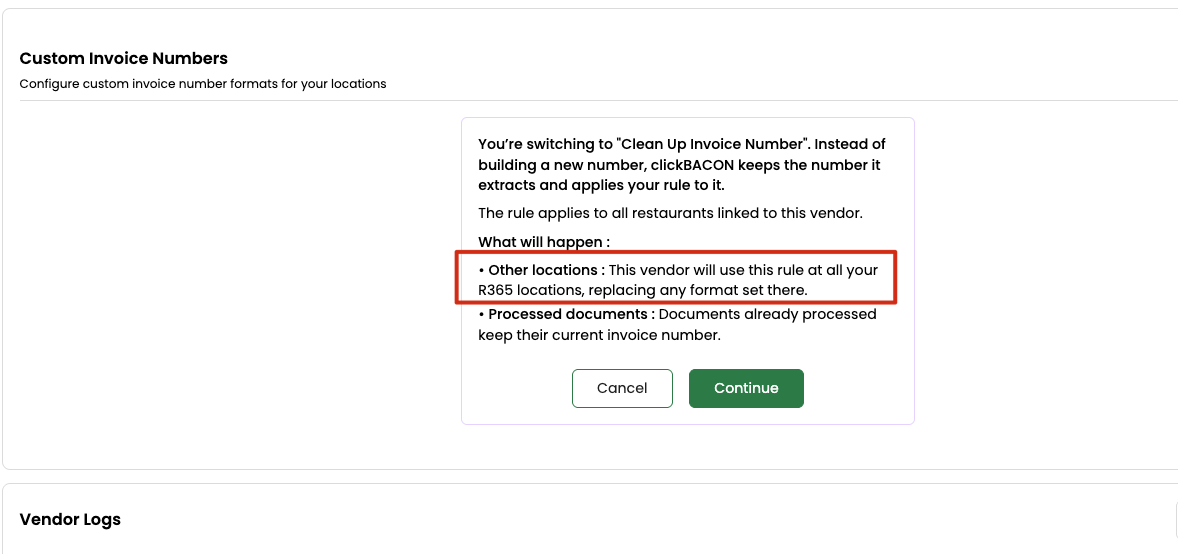
This setting applies to all locations for that vendor and overrides any Without Account Number setup at the location level.
To set up Custom Invoice Numbers, scroll down to the Custom Invoice Number section of the Vendor Profile.
- Toggle the setting on
- Select either Without Account Number or Clean Up Invoice Number.
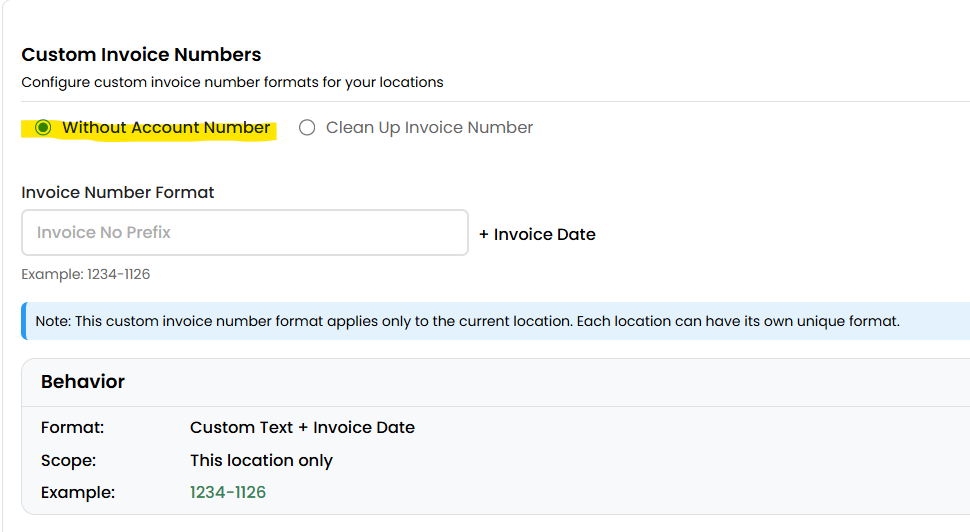
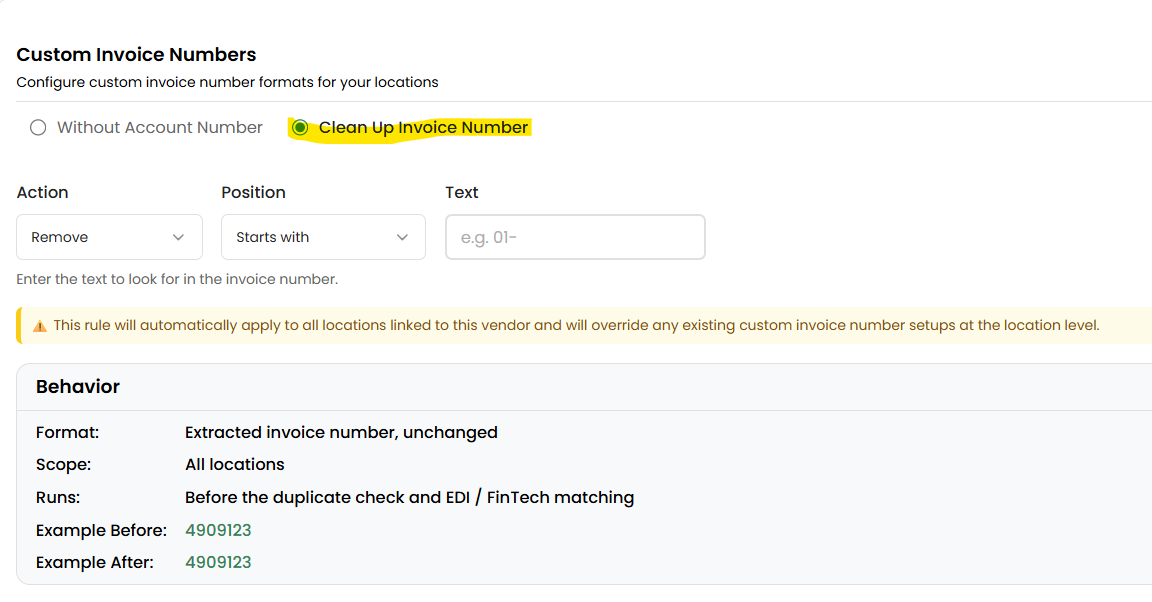
- Fill in the fields for your chosen option and save.
NOTE: When you switch to "Clean Up Invoice Number" it will not affect any previously processed documents. It will affect this vendor across your entire company within clickBACON and NOT your entire R365 instance.