
If you are connected to R365 and your vendor is marked as EDI, you can attach documents from clickBACON directly to the EDI transaction inside R365.
MARKING A VENDOR AS EDI
Click on the gear icon then select LIST → VENDORS. Click on the pencil icon and scroll down to the EDI Vendor section. Turn the toggle on then click SAVE.
You can also do this directly from inside a document by clicking the pencil icon above the vendor name.
Note: we will only extract meta data (vendor name, invoice number, total) in order to match it to an R365 transaction.

ORPHANED INVOICES
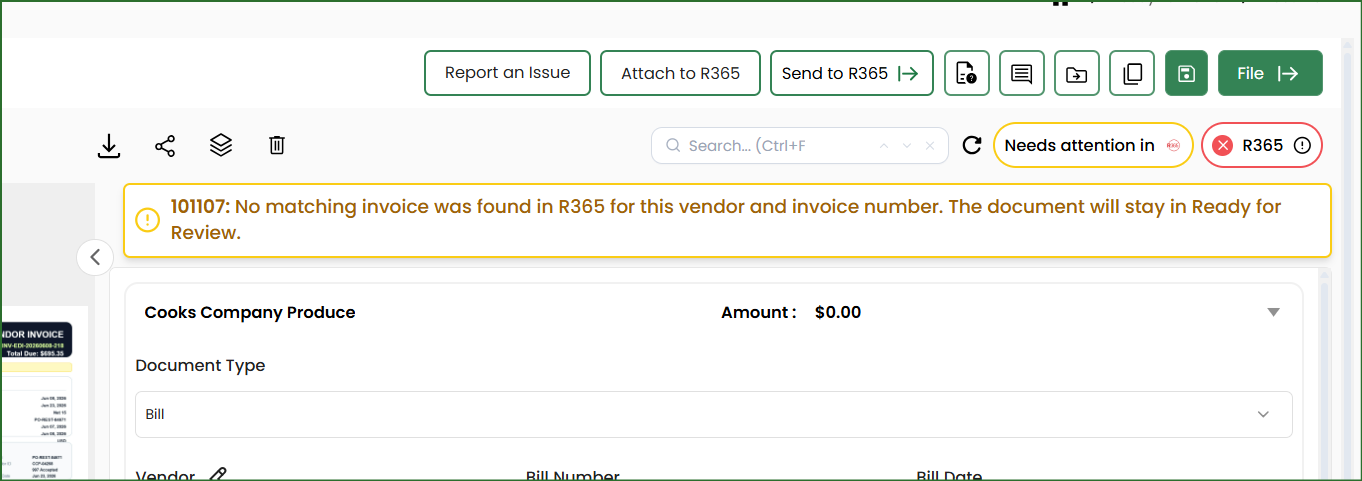
EDI transactions should arrive in R365 prior to the invoice being uploaded into clickBACON. If that hasn't happened yet, clickBACON will leave the invoice "orphaned" inside the Ready for Review folder and check R365 hourly for matching transactions. Once a match is found, invoice and transaction will be linked and sent to R365 automatically.
TRANSACTIONS WITH ATTACHMENTS
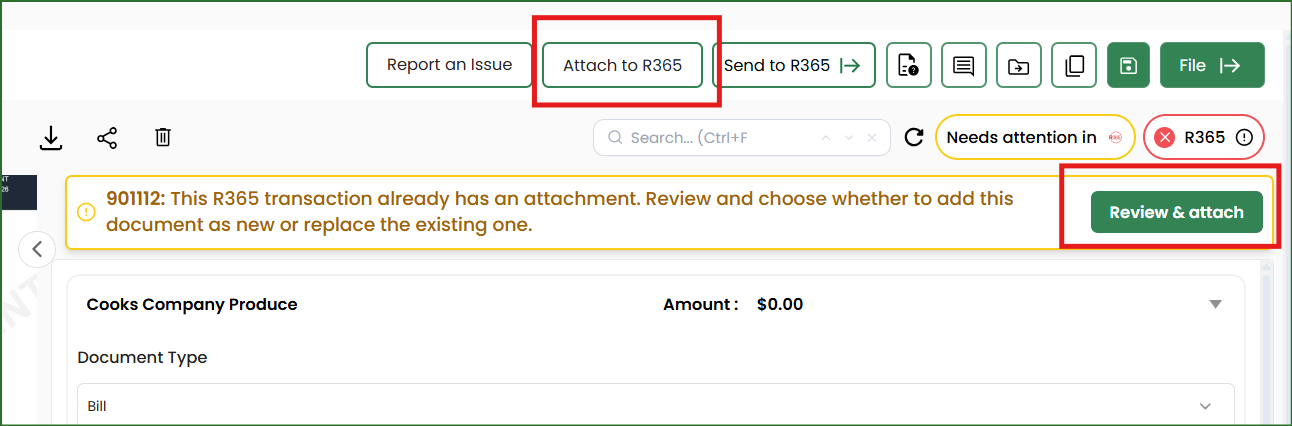
If the matching R365 transaction already has attachments, clickBACON will display a warning. From there you can proceed using either the Attach to R365 or Review & Attach button to see the transaction number and names of any existing attachments.
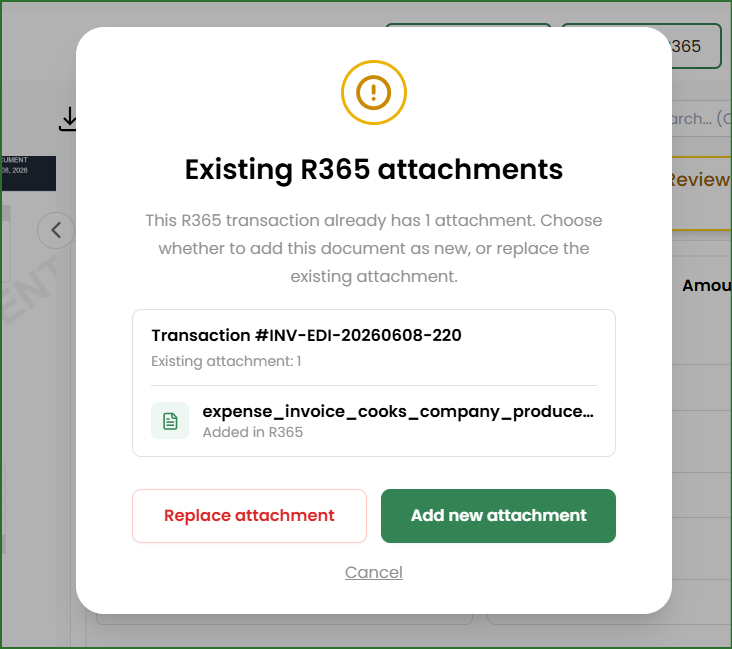
From that pop up you have two options:
- Replace Attachment - deletes the existing attachments in R365 and replaces them with this invoice
- Add New Attachment - adds this invoice to the transaction while keeping all existing attachments.
You can also cancel out of this pop up if you need to review further before taking action.
SUCCESSFUL ATTACHMENTS
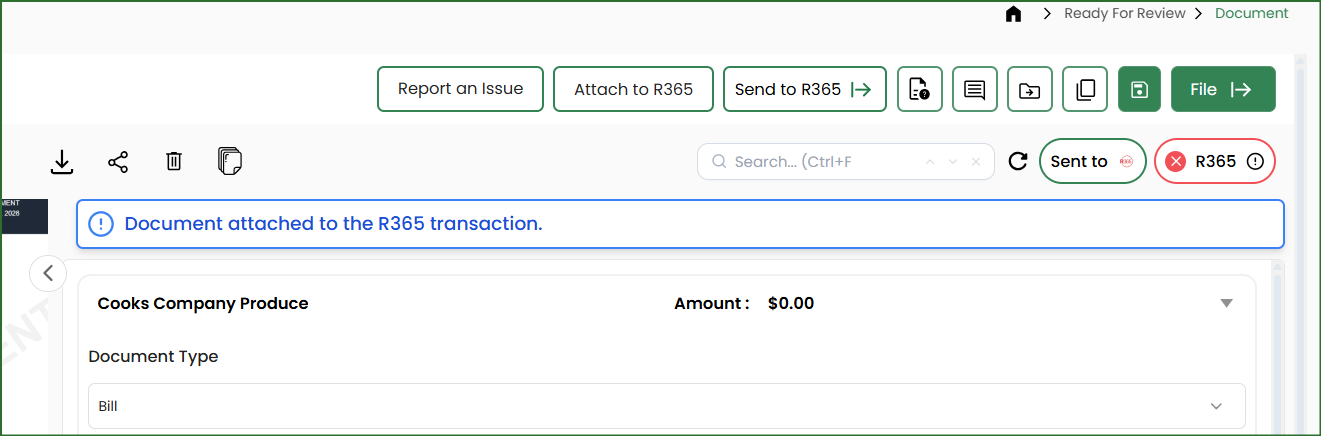
Once your invoice has been matched to a transaction in R365 and attached, a banner will appear on the document confirming it was attached to the R365 transaction. This is also recorded in the document logs.
Related Articles